
Update v0.24 — Mail System, Macros, Guild Events & Fog of War
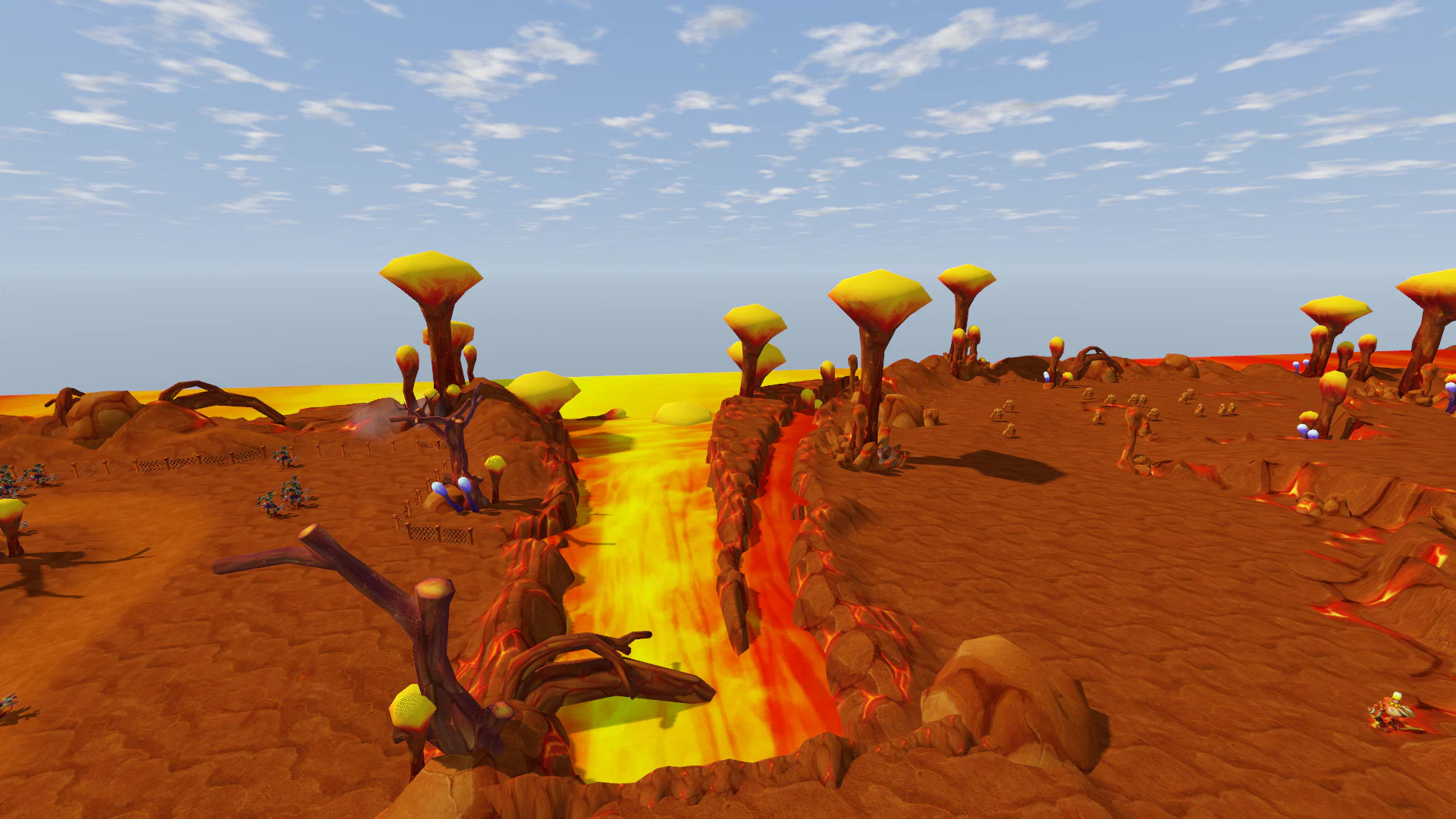
v0.24 introduces several major systems that expand player interaction, group organization, and character controls.
The game now features a complete Mail System with Item, Gold, and Trading Offer delivery, a new Skill Macro System, Guild Event scheduling, and a new enemy visibility mechanic in Army Battle.
Main highlights:
- Mail System — send letters, Items, Gold, and Trading Offers to other players;
- Macros — create custom Skill sequences and place them on your Skill Bar;
- Guild Events — organize Raids, Army Battles, and other activities with player registration;
- Fog of War — enemies in Army Battle are now visible only within 50 meters;
- Skill Reset Scrolls — reset a single Skill or all Skills from a selected Job;
- Inventory Improvements — Item Search, Stack Splitting, and a cleaner interface;
- Party Chat — a dedicated channel for Party Members regardless of distance;
- Chat Emojis — almost 470 Emojis with a customizable Quick Access Bar;
- Quest Monster Markers — special indicators above Monsters required for active Quests;
- improvements to Titles, Pets, Crafting, Skill Tooltips, Guild Notifications, and World Map.
Mail System — In-Game Mail
A complete Mail System is now available.
Players can send each other:
- regular letters;
- Items;
- Gold;
- Trading Offers with custom prices.
Mail NPCs are available in:
- Alpia;
- Silaris;
- Flammio;
- Aquaton.
Sending Letters
To send a letter, simply enter:
- Recipient Name;
- Subject;
- Message.
You can attach:
- up to 6 Items;
- Gold.
Recipient Search
When entering a recipient's name, the game automatically suggests matching Characters.
Suggestions appear after typing 3 characters.
This makes sending letters easier and reduces mistakes when entering Character Names.
Trading Offers Through Mail
You can now send Trading Offers to other players.
To create an offer:
- select the recipient;
- attach the Items;
- enter the total price;
- choose the offer duration;
- send the letter.
The recipient can pay the requested amount and claim the Items.
After a successful purchase, the Gold is delivered to the seller through a separate letter.
Trading Offer Duration
You can choose:
- 1 day;
- 3 days;
- 7 days.
If the recipient:
- declines the offer;
- or does not accept it before the deadline;
the Items are automatically returned to the sender through Mail.
New Mail Notification
When new Mail arrives, an Envelope Icon appears below the Minimap.
It also displays the number of unread letters.
You no longer need to constantly visit a Mail NPC to check whether something has arrived.
Mail Expiration
Regular letters remain available for 7 days.
Each letter displays its remaining storage time.
After expiration:
- unclaimed Items are returned to the sender;
- empty letters are deleted.
Returned Items and Gold received from completed Trading Offers remain available until their owner collects them.
Personal Items & Mail
Items with Personal Status cannot be sent to other players.
To transfer such an Item, you must first use an Equipment Sealing Scroll.
Weight Limit
Character Weight is also checked when collecting Mail attachments.
If your Character cannot carry the Items:
- they remain in the letter;
- nothing is lost.
When accepting a Trading Offer, Gold is not deducted if your Character cannot carry the purchased Items.
Spam Protection
A sender can have no more than 10 letters stored in a particular recipient's mailbox.
Until the recipient clears some of those letters, the sender cannot send additional ones.
Gold Formatting
Gold amounts in the Mail Window now use thousands separators.
For example: 1.250.000
Macros — New Macro System
A new option has been added to the Esc Menu: Macros.
Players can now create custom Skill sequences and activate them using a single button on the Skill Bar.
Creating a Macro
Each Macro can have:
- Name;
- Icon;
- Skill Sequence.
You can choose any Icon from the game's abilities, including:
- Active Skills;
- Passive Skills;
- Skills from other Classes.
Up to 8 Skills per Macro
Each Macro can contain up to 8 Skills.
A single Click starts executing the Skills in order.
The next Skill is used as soon as the previous one finishes.
Target Selection for Skills
For every Skill in a Macro, you can independently choose:
- Target;
- Self.
For example, you can configure a Macro so that:
- an Attack Skill is used on the Enemy Target;
- a Healing Skill is applied to your Character;
- a Buff is also applied to your Character.
Even when an ally is selected, Skills configured as Self are applied to you.
Adding Skills
Skills can be added:
- from the list of learned abilities;
- by dragging them directly from the Skills Window.
Their execution order can be changed using arrows.
Macros on the Skill Bar
A completed Macro can be:
- dragged into any Skill Bar Slot;
- added using the Add to Skill Bar button.
It can then be activated like a regular Skill.
Skipping Unavailable Skills
If a Skill:
- is still on Cooldown;
- or has not been learned;
the Macro skips it and continues with the next Skill.
Macro Interruption
Macro execution stops if:
- a Skill is interrupted;
- the player activates another Skill Bar Slot;
- the Character dies.
Macro Limit
You can create up to 36 Macros.
Macros are:
- shared between all your Characters on the same computer;
- stored locally on your computer.
Guild Events — Event Scheduling
A new tab has been added to the Guild Window: Events.
Guilds can now organize activities in advance.
For example:
- Dungeon Raids;
- Army Battles;
- Fishing Events;
- Guild Meetings;
- other in-game activities.
Creating a Guild Event
Each Event contains:
- Date;
- Time;
- Description.
This allows Guild Members to know when an activity will take place and what it is about.
Player Registration
Members can respond to an Event with Going or Not Going.
Responses can be:
- changed;
- removed;
at any time.
Participant List
Each Event displays:
- who plans to attend;
- who declined;
- how many members have not responded.
This helps Guild Leadership organize groups and plan activities.
Guild Event Permissions
The Guild Leader can create, reschedule, and cancel Events.
A new permission has also been added under Permissions, called Manage Events.
The Guild Leader can assign this permission to any Guild Rank.
Automatic Time Zone Conversion
Event times automatically account for each player's Time Zone.
For example, if an organizer schedules an Event using their local time, other participants will see the corresponding time in their own Time Zone.
No manual conversion is necessary.
The Date Tooltip also shows the time in UTC.
Guild Event Notifications
The game now notifies players about:
- newly created Events;
- rescheduled or modified Events they responded to;
- canceled Events they planned to attend.
The Events tab also displays the number of Events you have not responded to yet.
Guild Event Storage
After an Event ends, it remains in the list for another 24 hours.
It is then automatically removed.
A Guild can have up to 30 Events.
Events can be scheduled up to 1 year in advance.
Guild Window
The Guild Window has been enlarged.
More information now fits on every tab.
Event creation, rescheduling, and cancellation are also recorded in the Guild Log.
Army Battle — Fog of War
A new mechanic has been introduced in Army Battle: Fog of War.
Enemy Players are now visible only within a limited radius.
Enemy Visibility — 50 Meters
Enemy Players are visible only within 50 meters.
Beyond this distance, enemies are completely hidden.
The following are not displayed:
- Character Model;
- Character Name;
- the ability to select them as a Target.
Allies Remain Visible
Fog of War does not hide Friendly Players.
Members of your own Army remain visible as before.
Visual Visibility Boundary
Everything beyond 50 meters from your Character is covered by a visual haze.
The visibility boundary can be seen directly on the Battlefield.
Individual Visibility
Each player has their own visibility radius.
If an ally discovers an Enemy Player somewhere else on the Battlefield, you will not see that enemy until you approach them yourself.
Enemy visibility is not automatically shared between allies.
Fog of War During Preparation
The mechanic works:
- during the Preparation Phase;
- during the actual Army Battle.
Skill Reset Scrolls
Two new Scrolls have been added for resetting learned Skills.
Single Skill Reset Scroll
Allows you to forget one selected Skill.
All other Skills remain unchanged.
Gold spent on learning the selected Skill is refunded.
This is useful when you want to replace one ability without resetting your entire Build.
Profession Skill Reset Scroll
Allows you to reset all learned Skills from one selected Job:
- 1st Job;
- 2nd Job;
- 3rd Job.
Skills from other Jobs remain unchanged.
Gold spent on the reset Skills is refunded.
Reset Window
Using a Scroll opens a selection window.
It displays:
- which Skills will be reset;
- how much Gold will be refunded.
The game asks for confirmation before completing the Reset.
If there is nothing to reset, the Scroll is not consumed.
Where to Buy the Scrolls
Both Scrolls are sold by Lala.
Prices:
- Single Skill Reset Scroll — 50,000 Gold;
- Profession Skill Reset Scroll — 150,000 Gold.
Inventory — Major Quality-of-Life Improvements
The Inventory has received new tools for managing Items.
Stack Splitting
You can now split Item Stacks.
Use Shift + Drag: hold Shift and drag a Stack into another Slot.
A quantity selection window will appear.
Quick Quantity Selection
You can:
- enter the amount manually;
- select 1/3 of the Stack;
- select 1/2 of the Stack;
- select 2/3 of the Stack.
The separated Items can be placed:
- in an empty Inventory Slot;
- into another Stack of the same Item.
Split Through Right Click
A new option has been added to the Item Context Menu: Split.
When used, the separated portion is automatically placed in the first available Inventory Slot.
If there is no free space:
- the split is canceled;
- the game displays an Inventory Full message.
Inventory Search
A new button has been added to the Inventory: Search.
It opens a search field.
Enter part of an Item's name.
Then:
- matching Items remain fully visible;
- other Items become dimmed.
If the matching Item is on another Inventory Tab, the Inventory automatically switches to that tab.
Inventory Layout
The Inventory Window is now cleaner and more stable.
- unnecessary empty space beside the Slots has been removed;
- the Window Width no longer changes when Weight changes;
- the Window Width no longer depends on the number of occupied Slots.
Updated Inventory Buttons
The separate Equip / Use button has been removed.
Items can still be equipped or used through:
- Double Click;
- Right Click Menu;
- Drag & Drop.
The Sort button has been moved to the bottom, next to Drop.
Weight Display
Weight in the Inventory Header is now displayed as a compact number.
The full information, including the percentage, is available in the Tooltip when hovering over it.
Storage & Guild Bank Search
Item Search is now also available in:
- Personal Storage;
- Guild Bank.
Search checks both:
- Storage or Guild Bank Slots;
- Items in your Inventory.
Party Chat — New Channel
A dedicated channel has been added to Chat: Party.
Party Members can now communicate regardless of distance.
Messages are received by all Party Members, even when they are in different Locations.
Party Chat Tab
When your Character joins a Party, Chat automatically displays:
- Party Tab;
- Party in the Channel Selection menu.
Quick Command
To send a Party Chat message, use:
/p your message
Quick Channel Switching
Clicking the [Party] label next to a message automatically switches Chat Input to the Party Channel.
Switching channels with Tab continues to work as before.
Message Color
Party Messages are displayed in light blue. This makes them easier to distinguish from:
- Guild Chat;
- Army Chat.
Party Chat also works during Army Battle.
Chat Channel Settings
A new section has been added to Chat Settings: Show Channels.
You can now choose which channels are displayed.
Available channels:
- Nearby;
- Shout;
- Global;
- Whisper;
- Guild;
- Party;
- Army.
Hiding Channels
When a channel is disabled:
- its messages disappear from the All tab;
- its dedicated tab is hidden.
However, messages are not deleted.
Re-enabling the channel makes them visible again.
System Messages are always displayed.
Chat Emojis
A complete Emoji System has been added to Chat.
A new button in Chat Input opens the Emoji Picker.
Almost 470 Emojis
Approximately 470 Emojis are available across 8 categories:
- Faces;
- Gestures & People;
- Hearts & Celebrations;
- Animals;
- Food & Drinks;
- Games & Objects;
- Nature & Weather;
- Symbols.
Inserting Emojis
Clicking an Emoji inserts it at the current Cursor position.
The Emoji Picker remains open.
You can insert multiple Emojis in a row.
Quick Emojis
A new bar has been added to the top of the Emoji Picker: 8 Quick Emojis.
You can customize it to your preferences.
Customizing Quick Emojis
Open Chat Settings → Quick Emojis.
Then:
- select a Slot;
- select an Emoji;
- save your selection.
The Reset button restores the default Quick Emojis.
Emoji Display
Emojis are now displayed in:
- Chat History;
- Chat Input;
- Speech Bubbles above Characters.
Long sequences of Emojis without spaces also wrap correctly onto new lines without splitting individual symbols.
Quest Monster Markers
Monsters required for active Quests now receive a special marker.
A Gold Diamond appears to the left of the Monster Name.
This makes it immediately clear which Monsters are needed for your Quests.
All Active Quests Are Included
The system checks all accepted Quests, not only those pinned to the Quest Tracking Panel.
Automatic Marker Removal
The Gold Diamond disappears when:
- the required number of Monsters has been defeated;
- the Quest is completed;
- the Quest is abandoned.
Quest Marker Setting
The marker can be disabled under:
Settings → Interface → Overhead → Quest Marker on Monster Name
If Monster Names are disabled entirely, the Quest Markers are hidden as well.
Map Legend — New Information Panel
A new button has been added to the World Map: Legend.
It is located next to All Maps.
More Compact Map Window
The old row of Icon descriptions below the Map has been removed.
All explanations are now collected in a dedicated window.
Quest & Player Markers
The Legend explains:
- Player Position;
- Available Quests;
- Quest Turn-ins;
- Quest Zones;
- Fishing Spots;
- Party Members;
- Friends;
- Guild Members.
New Legend Entries
Descriptions have been added for elements that previously had no dedicated explanations:
- Character Path and Destination;
- Marked Location;
- Location Links from Chat;
- route destinations.
NPC & Service Icons
The Legend also explains Icons for:
- Item Shops;
- Equipment Shops;
- Sowel Shops;
- Blacksmith;
- Market;
- Storage;
- Mail;
- Bulletin Board;
- Skill Mentor;
- PvP Entrance;
- Bind Point;
- Barber;
- Costume Shop;
- Events;
- Fishing Shop;
- Pet Shop;
- Teleport Crystal.
Map Controls
The Legend also includes control instructions:
- Mouse Wheel — Zoom;
- Left Mouse Button — move the Map;
- Click — move the Character to the selected point;
- Right Mouse Button — open All Maps.
The Legend supports:
- all UI Themes;
- all supported game languages.
Quest Markers on the Map — New Setting
A new setting has been added: Quests on Map & Minimap.
Located under Settings → On Screen.
When disabled, the World Map and Minimap no longer display:
- Available Quest Icons;
- Turn-in Quest Icons;
- Quest Zones for pinned Quests.
These Quests are also removed from the Quest counters on World Cards.
The following remain visible:
- Party Members;
- Friends;
- Guild Members;
- Fishing Spots.
Quest Auto Run and the Quest Tracking Panel continue working normally.
The setting is Enabled by default.
Titles — New Search
A Search Bar has been added to the Titles Window.
You can now search Titles by:
- Name;
- Number;
- Category;
- Unlock Requirement.
The list updates as you type.
Search Filters
Search works together with the existing filters:
- Obtained;
- Discovered;
- Undiscovered.
Hidden Requirements Remain Secret
If a Title has not yet been discovered, its Unlock Requirement is excluded from Search.
This preserves the mystery of undiscovered Titles and their unlock conditions.
Pets — Interface Improvements
The Pet Frame has received several changes.
More Visible Progress Bars
The following bars:
- Pet Experience;
- Pet Nutrition;
are now 2 times taller.
This makes them much easier to see.
Pet Context Menu
Right Click on the Pet Frame now opens:
- Feed;
- Unsummon.
Automatic Pet Food Selection
When selecting Feed, the game automatically searches your Inventory for Food suitable for your Pet.
It prioritizes Regular Food.
Elite Food is consumed only when no suitable regular Food is available.
Missing Pet Food
If no suitable Food is found, the game displays: No food for pet.
Crafting — Progress Directly in the Window
A new Profession Progress section has been added to the Crafting Window.
While crafting Items, you can now see:
- Current Crafting Level;
- Experience Progress Bar;
- Experience gained per crafted Item.
Experience per Recipe
For example:
Crafting Level 4 · 37.5% (+2.5% per item)
Experience updates immediately after each completed Item.
You no longer need to return to the Recipe Book to check your progress.
Crafting Level Up
When your Crafting Level increases, the Level display is highlighted in gold.
Recipes Without Experience
If a Recipe is too easy for your current Crafting Level, the window clearly states:
This recipe grants no Crafting Experience
You no longer need to waste Materials on Items that cannot increase your Profession Level.
Skill Tooltips — Attribute
A separate line has been added to Skill Tooltips: Attribute.
You can now immediately see which element a Skill belongs to:
- Fire;
- Water;
- Earth;
- Climate;
- Light;
- Darkness.
Passive Skills
Attributes are now displayed for Passive Skills as well.
This makes it easier to understand which Skills are affected by:
- Fire Magic Enhancement;
- Earth Magic Enhancement;
- Climate Magic Enhancement;
- Darkness Magic Enhancement.
Skills Without an Attribute
If a Mage Skill does not belong to an element, its Tooltip displays: No Attribute.
Elemental Enhancements do not affect these Skills.
Attributes are visible:
- in the Skills Window;
- on the Skill Bar.
Guild Notifications
The Guild Notification System has received several improvements.
Guild Activity Points
When a Guild reaches the limit of 3,000 Activity Points, the game now displays:
- a prominent Gold Notification Frame at the top of the screen;
- a Gold Message in Chat.
Previously, the notification appeared only in the Log and was easy to miss during Combat.
Guild Quest Completion
When a Guild Quest is completed, a message now appears in Guild Chat showing:
- which Quest was completed;
- which Reward the Guild received.
Quest Experience — Progression Fix
Experience Rewards have been increased for two early Quests:
- Learning About Gear;
- Novice Adventurer.
Previously: 200 XP. Now: 260 XP.
Level 4 → Level 5
Previously, if a player completed Quests and defeated exactly the required number of Monsters, there might not be enough Experience to reach Level 5.
Players had to defeat additional Monsters.
Now the Quest Rewards provide enough Experience to reach Level 5.
The next Quests become available immediately afterward.
Friend Frame — Compact Design
The on-screen Friend Frame is now more compact.
It displays only the most important information:
- Class Icon;
- Character Name;
- Friendship Level;
- HP;
- MP;
- Golden Apple Progress.
Unnecessary Information Removed
The following elements have been removed from the compact Friend Frame:
- Character Level;
- Friendship Progress Bar;
- Closeness Progress Bar;
- Status Icons;
- Marriage Indicator.
All this information remains available in the full Friendship Window.
Friend Is Too Far Away
If your Friend is far away, the Frame still becomes dimmed.
The explanation Too far — bonuses are inactive now appears in a Tooltip when hovering over the Frame.
Golden Apple — Quick Collection
When the Golden Apple is ready, a glowing Apple Icon appears next to the Friend Frame.
Simply click it to collect the Golden Apple.
You no longer need to open the Friendship Window.
Mentor Quests — Class Restrictions
The Weapon Material Quests offered by class mentors have been corrected.
These include:
- Materials for Training Swords;
- Materials for Training Arrows;
- Materials for Training Staffs;
- Materials for Battle Swords;
- Materials for Battle Arrows;
- Materials for Battle Staffs.
They are now offered only to the appropriate Classes:
- Warriors — Joel;
- Archers — Kurian;
- Mages — Chmella.
Mentor Quest Markers
The Available Quest Icon no longer appears above a mentor from another Class because of these Quests.
If a Character already accepted one of these Quests despite belonging to a different Class, the Quest will remain in the Journal and can still be completed normally.
NPC & Soul Guardian Visual Fixes
Two visual issues involving distant objects have been fixed.
Quest Icons Above NPCs
Quest Icons no longer float too high above NPCs when viewed from a distance where the NPC Name is no longer visible.
Soul Guardian Position
Soul Guardians now maintain their correct position above the Character's head even at long distances.
Previously, they could visually rise too high into the air when viewed from far away.
Staff Panel — New Tools
The Staff Panel has received additional management and testing tools.
These features are intended for project staff.
Profession Management
A new option has been added to the Character page.
Staff can now assign any of the four Professions belonging to a Character's Class.
This allows them to:
- assign a Profession without completing its Job Quest;
- switch back to a previous Profession.
The corresponding Profession Level requirements are:
- Level 30;
- Level 50;
- Level 70.
Assigning a Profession does not automatically increase the Character's Level.
Titles Management
A dedicated page has been added to the Staff Panel: Titles.
All game Titles are now available in one list.
Search & Filters
Titles can be searched by:
- Name;
- Number.
They can also be filtered by:
- Category;
- Obtained;
- Discovered;
- Undiscovered.
Title Management
Staff can:
- grant a Title;
- remove a Title;
- mark it as Discovered;
- hide it again;
- apply an action to all Titles matching the current Filter.
When a Title is removed from a Character:
- its corresponding Points are returned;
- the Title is automatically unequipped if it was active.
Title Progress
Progress Conditions can now be managed directly.
Staff can:
- set Progress;
- reset Progress;
- increase Progress to the required Threshold;
- mark a Condition as completed.
Some Titles share a common Progress Counter — for example, total Monster Kills.
Changing such a Counter also affects other Titles using the same Condition.
Summary
v0.24 is one of the largest updates to the game's social and utility systems so far.
The Mail System introduces new ways to exchange Items and organize player-to-player trading. Guild Events help communities plan activities, while Party Chat makes communication easier regardless of distance.
The new Macro System expands Skill controls, and Fog of War adds more tactical depth to Army Battle by requiring players to discover enemies themselves.
At the same time, Inventory, Storage, World Map, Crafting, Pets, Titles, and Friendship have received numerous quality-of-life improvements that make everyday gameplay more convenient.